
How to Use Blox Fruits Scripts – Complete Usage Guide 2025
You’ve installed your executor and downloaded scripts-now what? Understanding how to actually use Blox Fruits scripts separates beginners from experienced users who maximize automation benefits. Most players activate random features without understanding what they do, resulting in inefficient farming, wasted time, or worse-account detection.
This comprehensive guide teaches you everything about script usage: navigating GUI menus, configuring features optimally, combining capabilities strategically, and avoiding common mistakes that trigger bans. Whether you’re using Redz Hub, Hoho Hub, or any other script, these principles apply universally.
- Understanding Script GUI Interfaces
- Mastering Auto Farm Features
- Teleportation and Navigation Features
- Combat Enhancement and PvP Features
- ESP and Information Gathering
- Raid and Boss Farming Automation
- Settings Optimization for Safety and Performance
- Best Practices and Pro Tips
- Frequently Asked Questions About Script Usage
Understanding Script GUI Interfaces
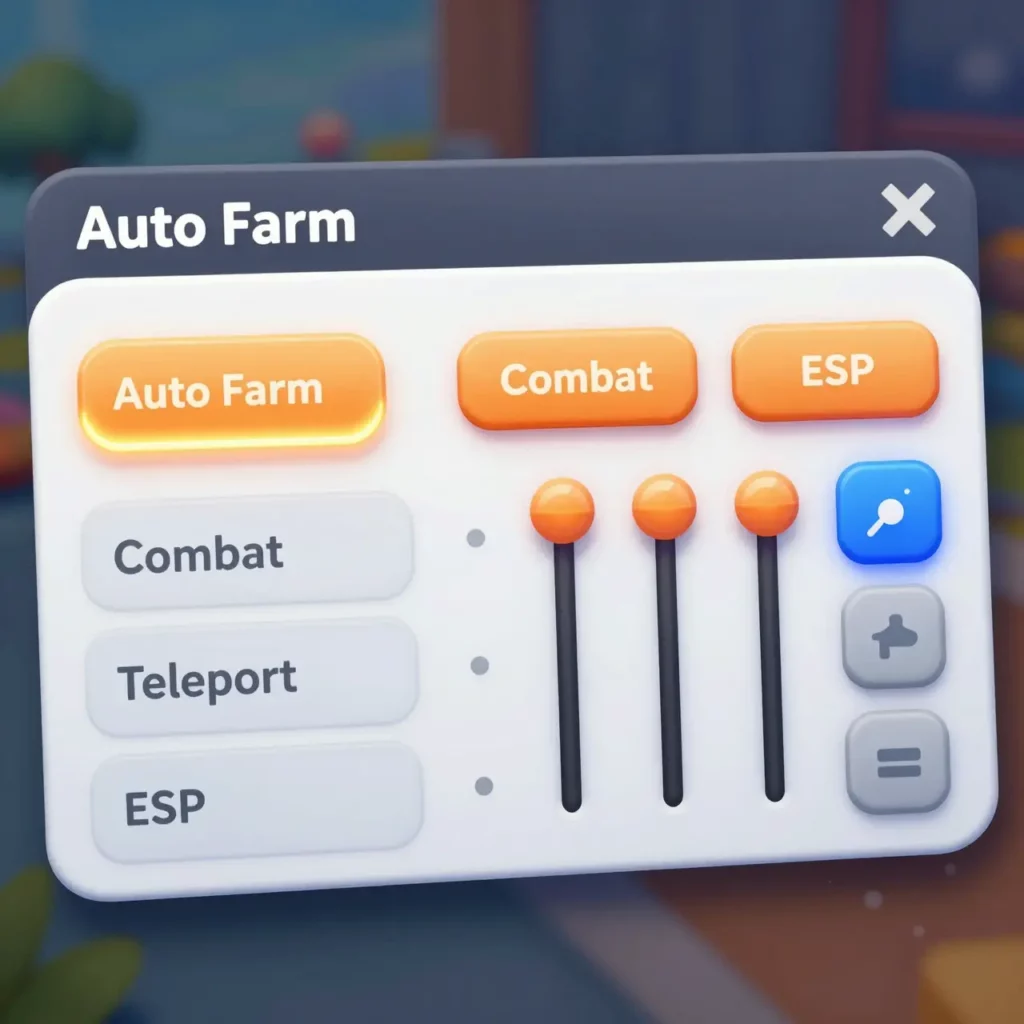
After executing a script successfully, a graphical user interface (GUI) appears overlaid on your Blox Fruits gameplay. This control panel provides access to all script features through buttons, toggles, sliders, and dropdown menus. Modern script GUIs organize features into logical categories, making navigation intuitive once you understand the layout.
Most GUIs display a main menu with tabbed sections: Farming, Combat, Teleportation, Misc (miscellaneous), and Settings. Click tabs to switch between feature categories. Within each tab, toggles enable or disable specific functions. Green typically indicates active features, while gray shows disabled ones. Some advanced scripts use color coding-blue for safe features, orange for medium risk, red for high detection potential.
GUI positioning matters for gameplay visibility. Most scripts allow dragging the interface to different screen locations. Place it where it doesn’t obscure important game elements like your health bar or enemy positions. Additionally, many GUIs include a minimize button-collapse the interface to a small icon when you need full screen visibility, then expand it when adjusting settings.
Essential GUI Elements Explained

Toggle switches represent the most common control type. Click once to enable a feature, click again to disable it. Unlike buttons that trigger single actions, toggles maintain their state until you manually change them. For instance, enabling “Auto Farm Level” keeps farming active indefinitely until you toggle it off.
Dropdown menus offer multiple options for a single setting. Farming target selection uses dropdowns-choose between NPCs, bosses, or specific mob types. Click the dropdown to reveal options, then select your preference. The GUI remembers your selection across sessions in many scripts.

Sliders adjust numerical values like farming speed or teleportation distance. Drag the slider left to decrease values, right to increase them. Some sliders display exact numbers, while others show percentages. Experimentation helps determine optimal settings for your specific needs.
Input fields accept text or numbers directly. Teleportation coordinates require manual input in some scripts. Click the field, type your value, then press Enter or click a confirm button. Double-check entries-incorrect coordinates may crash your game or place you in invalid locations.
Mastering Auto Farm Features
Auto farming represents the most popular script capability, automating the tedious process of defeating NPCs for experience and currency. However, simply toggling “Auto Farm” doesn’t guarantee efficient results. Proper configuration dramatically impacts farming speed and detection risk.
Setting Up Optimal Auto Farm
Begin by selecting appropriate farming targets based on your level. Most scripts offer multiple farming modes: Level Farm, Mastery Farm, and Boss Farm. Level farming targets NPCs matching your level range for maximum XP efficiency. Navigate to the Auto Farm tab and locate the “Select Farm Mode” dropdown. Choose “Auto Farm Level” for general progression or “Auto Farm Mastery” when grinding weapon or fruit proficiency.
Target selection determines where your character farms. Scripts typically auto-select enemies matching your current level, but manual override provides flexibility. If auto-selection farms in crowded areas attracting attention, manually choose less populated farming zones. Open the “Farm Location” dropdown and review available areas. Select islands with enemy concentrations but fewer real players.
Distance settings control how close your character approaches enemies. Longer distances appear safer but reduce attack efficiency. Shorter distances maximize damage output but look more obviously automated. Start with medium distance (around 15-20 units), then adjust based on results. Locate the “Attack Distance” slider and set it to your preferred value.
Advanced Farming Configurations
Attack speed modifications increase farming efficiency but raise detection risk substantially. Scripts offer “Fast Attack” toggles that remove ability cooldowns, letting you spam attacks continuously. While incredibly effective, this feature screams “cheater” to observant players and anti-cheat systems. Use Fast Attack conservatively-enable it only during private server sessions or when few players occupy your farming area.
Quest integration supercharges XP gains by combining automated farming with quest completion. Enable “Auto Quest” in the Misc tab, then activate your farming features. The script automatically accepts appropriate quests, farms the required enemies, then collects rewards. This synergy provides significantly higher XP rates than farming alone.
Weapon and fruit selection ensures your character uses optimal combat tools. Navigate to the Combat tab and locate weapon selection dropdowns. Choose your highest damage weapon for efficiency. If farming fruit mastery, select your target devil fruit from the fruit dropdown. The script equips and uses your selections automatically during farming.
Teleportation and Navigation Features
Teleportation eliminates travel time between islands, raids, and farming locations. However, misuse creates obvious cheat signatures that attract reports. Understanding teleportation mechanics and limitations keeps you safer while maximizing convenience.
Safe Teleportation Practices
Instant teleportation across the map triggers detection more readily than shorter jumps. While scripts allow teleporting from First Sea directly to Third Sea, such massive jumps appear impossible naturally. Instead, teleport incrementally-jump to intermediate islands rather than final destinations directly. This mimics legitimate travel patterns more closely.
Teleportation frequency matters significantly. Jumping every 10 seconds looks automated. Space out teleports with 30-60 second intervals minimum, longer when possible. Allow your character to walk or fight briefly between jumps. These pauses create more human-like movement patterns that reduce detection likelihood.
Server-side validation checks your position against possible movement speeds. Teleporting too frequently may trigger server-side flags even without player reports. Most scripts include “Bypass TP” or “TP Walk” features that simulate walking rather than instant transportation. Enable these options in the Settings or Misc tab. Your character appears to move quickly but not impossibly, satisfying server validation while remaining fast.
Using Teleportation Effectively
Pre-set locations simplify navigation to frequently visited areas. Most GUIs list important locations: spawn points, quest givers, weapon shops, fruit dealers, and raid entrances. Click your destination in the list, then press the teleport button. The script moves your character instantly (or via bypass walking) to that location.
Coordinate-based teleportation offers unlimited flexibility. If you’ve found a specific farming spot or hidden area, save its coordinates for future teleportation. Stand at your desired location and note the coordinates displayed in many script GUIs. Write these down or screenshot them. Later, input those coordinates in the teleportation tab’s coordinate fields and activate teleport.
Player teleportation jumps you to other players’ locations-useful for PvP or joining friends in specific areas. Open the Player tab and view the connected players list. Select a target player, then click “Teleport to Player.” Your character moves to their position. Use this cautiously as sudden appearances near players attract suspicion, especially if they recognize you weren’t nearby moments earlier.
Combat Enhancement and PvP Features
Combat scripts modify fighting mechanics, providing advantages in both PvE (player vs environment) and PvP (player vs player) scenarios. These features range from simple auto-attack to complex aimbot systems. Understanding each capability helps you deploy them appropriately.
PvE Combat Optimization
Auto-attack eliminates manual combat input, automatically targeting and attacking nearby enemies. Enable “Auto Click” or “Auto Attack” in the Combat tab. Your character continuously attacks the nearest hostile NPC without additional input. Combine this with auto-farm for fully automated grinding-the script farms enemies while auto-attack handles combat execution.
Ability rotation automates fruit power and fighting style usage. Many devil fruits and combat styles have multiple abilities with different cooldowns. Scripts can cycle through these abilities optimally, maximizing damage output. Navigate to the Combat tab and enable “Auto Skill” or “Ability Rotation.” Configure which abilities to use via checkboxes-disable any you want to control manually.
Dodge mechanics help avoid damage during automated farming. Enable “Auto Dodge” to make your character automatically evade incoming attacks. This feature proves particularly valuable during boss farming where high damage attacks might interrupt your automation or kill your character. The script monitors enemy attack animations and triggers dodges at optimal timing.
PvP Combat Capabilities
Aimbot functionality automatically targets enemy players, removing the need for precise aiming. When enabled, your attacks track opponents even as they move or dodge. However, aimbot represents one of the most obvious cheating indicators. Other players immediately notice when attacks track them unnaturally. Reserve aimbot for situations where detection risk is acceptable-never use it in crowded public servers.
Kill aura damages all nearby players automatically without targeting individual opponents. Enable this feature in the PvP or Combat tab. Your character emits constant damage to anyone within range. Like aimbot, kill aura is blatantly obvious to other players. Use it only in private servers or when you’re comfortable with potential reports and bans.
Auto-dodge in PvP context predicts and avoids enemy attacks. The script analyzes opponent ability usage and triggers dodges before attacks land. This seemingly superhuman reaction time betrays automation to experienced players. Furthermore, some players record gameplay and submit video evidence of impossible dodges to game moderators. Consider whether PvP advantage justifies the elevated detection risk.
ESP and Information Gathering
ESP (Extra Sensory Perception) displays information not normally visible, revealing enemy locations, fruit spawns, chest positions, and player positions through walls and obstacles. While incredibly useful, ESP features are visually obvious when streaming or recording gameplay.
Fruit and Item ESP
Fruit ESP highlights devil fruit spawns across the map, showing their exact locations through all obstacles. Enable “Fruit ESP” in the ESP or Visuals tab. Colored markers appear indicating fruit positions and types. Different colors typically represent fruit rarities-common fruits show one color, legendaries another. This lets you prioritize valuable fruit collection.
Distance indicators display how far each marked item sits from your position. ESP systems typically show distance in studs (Roblox’s distance unit). Use these indicators to determine which fruits warrant immediate collection versus which can wait. If a legendary fruit spawns 200 studs away while a common fruit appears 50 studs away, prioritize the legendary despite the greater distance.
Notification systems alert you when valuable fruits spawn. Many scripts include notification features separate from visual ESP. Enable “Fruit Notifier” in the Misc tab. When fruits spawn, text alerts or sounds notify you immediately. This lets you disable visual ESP (reducing detection risk) while still receiving critical alerts about rare fruit spawns.
Combat and Enemy ESP
Enemy ESP reveals NPC and boss positions through walls and terrain. Enable “Enemy ESP” or “NPC ESP” to see colored outlines around all hostile entities. This information helps navigate directly to farming targets without searching manually. Additionally, boss ESP uses distinct colors or icons, making boss locations immediately apparent across the entire map.
Health bars displayed above enemies show exact HP remaining, letting you judge whether enemies are worth engaging or nearly dead. Some scripts display health numerically, others use colored bars. This information optimization farming routes-skip enemies with minimal health (someone else is farming them) and focus on full-health targets.
Player ESP shows other players’ locations, names, and sometimes additional information like their level or health. Enable cautiously as player ESP provides limited benefit beyond PvP scenarios. In PvE farming, knowing player positions helps avoid crowded areas. However, the detection risk often outweighs benefits unless you’re specifically engaging in PvP activities.
Raid and Boss Farming Automation
Raid automation represents advanced scripting that completes raid events without manual participation. Raids provide valuable rewards but typically require coordinated group effort or significant skill. Scripts eliminate both requirements through complete automation.
Raid Setup and Execution
Raid selection determines which raid your script attempts. Navigate to the Raid tab and review available raids. Different raids offer different rewards and difficulty levels. Select raids matching your level and goals. Lower level raids complete faster but provide lesser rewards. Higher level raids take longer but yield better items and more XP.
Auto-raid features handle the entire raid process: entering the raid, completing objectives, defeating enemies and bosses, then collecting rewards. Enable “Auto Raid” and configure your settings. Some scripts require selecting raid difficulty and objectives manually. Others automatically choose optimal settings based on your character level and equipment.
Chip management automates raid entry. Raids require physical chips (items) for entry. Scripts can auto-buy chips when your inventory runs low, ensuring continuous raid farming. Enable “Auto Buy Chips” in the Raid or Misc tab. Set your desired chip quantity threshold-when inventory drops below this number, the script purchases more automatically.
Boss Farming Strategies
Boss selection targets specific bosses for farming. Navigate to the Boss tab and review the boss list. Each boss drops unique items and provides different XP amounts. Select bosses that drop equipment you need or provide optimal XP for your level. The script automatically locates and farms your selected boss repeatedly.
Spawn timers indicate when bosses become available. Many bosses have cooldowns between defeats. Scripts display these timers, showing you exactly when each boss respawns. Additionally, auto-farm boss features automatically resume farming when cooldowns expire-your character waits idle during cooldowns, then immediately engages the boss upon respawn.
Grouping features help with difficult bosses requiring multiple players. Some scripts include basic coordination capabilities. Enable “Join Raid Group” or similar features to attempt teaming with other script users. However, this coordination remains limited compared to manual group organization with friends or clan members.
Settings Optimization for Safety and Performance
Script settings balance performance, efficiency, and detection risk. Default settings rarely provide optimal configurations for your specific situation. Spending time in the Settings tab dramatically improves your scripting experience.
Performance Settings
FPS unlocking removes Roblox’s 60 FPS cap, providing smoother gameplay on capable devices. Enable “Unlock FPS” or “Remove FPS Cap” in Settings. Your frame rate increases to match your monitor’s refresh rate. However, higher FPS increases battery drain on mobile devices substantially. Balance performance against battery life based on your priorities.
Lag reduction features disable unnecessary visual effects to improve performance. Scripts running alongside Roblox consume device resources, potentially causing lag. Enable “Remove Effects,” “Low Graphics Mode,” or “FPS Booster” to reduce resource usage. These features disable particles, animations, and other visual elements that don’t affect gameplay but consume processing power.
Auto-execution settings make scripts activate automatically when you join Blox Fruits. Enable “Auto Execute” in Settings. The next time you launch Blox Fruits, the script loads and runs without manual execution. This convenience saves time but means the script runs even when you might not want it active. Use this feature thoughtfully.
Safety and Detection Avoidance
Anti-ban features attempt to mask script usage from detection systems. Most scripts include “Anti-Ban” or “Bypass Detection” toggles. These features don’t guarantee safety but implement countermeasures against common detection methods. Enable them always unless they cause compatibility problems with specific script features.
Randomization settings add variation to automated actions, making behavior appear more human. Enable “Randomize Actions,” “Human-like Movement,” or similar options. Instead of attacking at precise intervals, your character varies timing slightly. Instead of following perfect paths to objectives, slight deviations occur. These randomizations reduce the robotic precision that flags accounts for investigation.
Feature restrictions limit high-risk capabilities in public servers. Some scripts allow configuring separate settings for public versus private servers. Designate which features activate in each server type. For example, enable full automation in private servers but restrict public servers to basic farming without teleportation or combat enhancements. This tiered approach balances utility against detection risk.
Best Practices and Pro Tips
Successful long-term script usage requires more than understanding individual features. Developing good habits and strategies separates users who maintain accounts successfully from those facing repeated bans.
Establishing Safe Usage Patterns
Vary your gameplay between manual and automated sessions. Never run scripts 100% of your play time. Dedicate some sessions to completely manual gameplay without any automation. This creates diverse activity patterns in your account history. Anti-cheat systems analyze player behavior over time-accounts showing exclusively automated patterns raise more red flags than accounts mixing automation with legitimate play.
Rotate between different activities rather than farming the same location for hours. Even with scripts, vary your in-game activities. Auto farm for an hour, then manually complete some quests. Do a raid, then farm bosses. Teleport to different islands periodically. This varied activity mimics natural player behavior better than repetitive single-location farming for extended periods.
Take regular breaks when running automation. Set timers to remind yourself to disable scripts periodically. During breaks, walk your character to different locations manually, check shops, organize inventory, or simply stand idle. These breaks interrupt the mechanical consistency that detection systems identify. Additionally, breaks reduce the risk of appearing AFK (away from keyboard) for extended periods, which can trigger kicks or reports from other players.
Advanced Strategy Development
Combine scripts with legitimate game knowledge for optimal results. Understanding Blox Fruits mechanics lets you configure scripts more effectively. Know which enemies provide best XP for your level. Understand fruit spawn mechanics to optimize fruit sniping. Learn raid mechanics to configure raid automation properly. Script power multiplies when paired with game expertise-skilled players using scripts achieve far better results than novices relying purely on automation.
Monitor script updates and game patches closely. Join Discord servers for your chosen scripts. Enable notifications for update announcements. When Blox Fruits updates, expect scripts to break temporarily. Avoid running outdated scripts after game patches-broken scripts behave erratically, increasing detection risk. Wait for script updates, then test new versions on alternate accounts before deploying to your main profile.
Document your settings and configurations. Take screenshots of your script settings. Note which features you enabled and why. If you need to reconfigure after script updates or when switching between multiple scripts, this documentation saves significant time. Additionally, if specific settings caused problems (crashes, detection, poor performance), notes help you avoid repeating mistakes.
Mastering Blox Fruits script usage transforms basic automation into a sophisticated system that maximizes efficiency while minimizing detection risk. The difference between random feature toggling and strategic script deployment determines whether you maintain long-term success or face repeated bans.
You now understand GUI navigation, feature configuration, optimal settings, and safety practices that separate experienced users from beginners. Apply these principles regardless of which script you choose-Redz Hub, Hoho Hub, Zenith Hub, or any other option. The underlying concepts remain consistent across all scripting platforms.
Remember that effective script usage balances three priorities: efficiency, safety, and sustainability. Maximize any single priority at the expense of others leads to suboptimal results. Extreme efficiency without safety considerations leads to bans. Perfect safety without efficiency gains defeats automation’s purpose. Sustainable long-term usage requires balancing all three factors thoughtfully.
Start conservatively with basic features, gradually expanding your automation as you gain experience and confidence. Monitor your account for any warnings or unusual behavior. Adjust strategies based on results. The learning process continues indefinitely-both scripts and detection systems evolve constantly, requiring ongoing adaptation.