Installation Guide for Blox Fruits Scripts (PC & Mobile)
Installing Blox Fruits scripts seems complicated until you understand the process. Whether you’re using Windows PC, Android phone, or iPhone, this comprehensive guide walks you through every step-from choosing the right executor to running your first automation script successfully.
Thousands of players struggle with script installation because scattered tutorials skip critical steps or assume technical knowledge. This guide eliminates confusion by providing platform-specific instructions that actually work. Follow along carefully, and you’ll be auto-farming within 15 minutes.
- Understanding the Installation Process
- Complete Windows PC Installation Guide
- Complete Android Installation Guide
- Complete iOS Installation Guide
- Platform Comparison and Recommendations
- Essential Safety Practices
- Troubleshooting Common Installation Issues
- Optimizing Performance After Installation
- Updating Executors and Scripts
- Frequently Asked Questions About Installation
Understanding the Installation Process
Script installation requires two components: an executor and the script itself. The executor acts as a bridge between Roblox and custom Lua code, injecting scripts into the game client. Without an executor, scripts cannot run-they’re just text files containing instructions.
Think of executors as specialized tools that speak Roblox’s language. When you paste a script into an executor and hit “Execute,” the tool translates that code into actions within your game. Different executors offer varying capabilities, stability levels, and detection risks. Choosing the right one for your platform represents the first critical decision.
Scripts themselves come from various sources-GitHub repositories, Discord communities, Pastebin links, or dedicated script websites. Quality varies dramatically between sources. Trusted developers maintain their scripts regularly, updating them after game patches. Meanwhile, abandoned scripts quickly become obsolete or trigger anti-cheat detection.
What You’ll Need Before Starting
Before diving into installation, gather necessary resources. Your device needs sufficient storage space-approximately 500MB for PC installations, 700MB for Android, or 800MB for iOS. Ensure stable internet connectivity since some executors verify licenses online and scripts may download additional components.
Disable antivirus software temporarily during installation. Security programs classify executors as potentially unwanted programs (PUPs) because they modify game behavior. This classification doesn’t necessarily indicate actual malware, but rather flags the tool’s function. Add your executor folder to antivirus exclusions after installation to prevent repeated interference.
Create a secondary Roblox account for testing. Using scripts violates Roblox’s Terms of Service, creating ban risk on your main account. Test new executors and scripts on an alternate profile first. Once you’ve verified everything works properly without triggering detection, you can decide whether to risk using scripts on your primary account.
Complete Windows PC Installation Guide
Windows remains the most straightforward platform for script execution due to extensive executor support and minimal restrictions. PC users typically use Oxygen U and Delta Executor. Let’s walk through the complete installation process step-by-step.
Step 1: Downloading Your Executor
Visit the official page to download the Blox Fruit script executable. Never download executables from YouTube descriptions, random forums, or third-party file hosting sites. They often contain malware or modified versions with backdoors.
Click the download button and wait for any countdown timers. Your browser may warn about downloading executable files. This is expected behavior for executors. Click “Keep” or “Download anyway” to proceed.
Once downloaded, locate the file in your Downloads folder. Right-click and select “Extract Here” if it’s a ZIP or RAR archive. Most executors arrive in compressed formats to reduce file size and avoid certain security filters.
Step 2: Setting Up Antivirus Exceptions
Before running the executor, configure your antivirus to allow it. For Windows Defender (built into Windows 10/11), open Windows Security from your system tray. Navigate to “Virus & threat protection,” then click “Manage settings.” Scroll to “Exclusions” and select “Add or remove exclusions.”
Click “Add an exclusion” and choose “Folder.” Browse to your executor’s directory and select it. This prevents Windows Defender from deleting executor files during operation. Repeat this process for any third-party antivirus software you’re running-Avast, AVG, Norton, or McAfee all require similar exclusions.
Some executors include batch files to configure Windows Defender exclusions automatically. If your executor provides this option, run it as administrator for automatic setup. However, manually verifying the exclusion ensures proper configuration.
Step 3: Initial Executor Launch
Double-click the executor’s main file (usually ending in .exe). Windows SmartScreen may display a warning: “Windows protected your PC.” This appears because the executor lacks a digital signature from Microsoft. Click “More info,” then “Run anyway” to proceed.
The executor interface opens, displaying various panels and buttons. Most modern executors feature a script input box, execution button, and saved scripts section. Additionally, many include built-in script hubs-collections of pre-made scripts for popular games like Blox Fruits. Familiarize yourself with the interface layout before proceeding.
Some executors require key authentication on first launch. If prompted, click the “Get Key” button. Your browser opens a verification page where you complete tasks or wait through countdown timers. Copy the generated key, return to the executor, and paste it into the key field. Keys typically expire after 24 hours, requiring daily renewal for free executors.
Step 4: Launching Blox Fruits
Open Roblox through the official app or website. Search for Blox Fruits and click Play. Allow the game to load completely-joining a server, spawning your character, and displaying the full interface. Attempting script injection before full game load causes errors and potential crashes.
Keep both the executor and Roblox running simultaneously. Don’t minimize the executor to your taskbar-leave it visible on your screen. Many executors monitor the Roblox process actively, requiring the executor window to remain open during gameplay.
Step 5: Injecting and Executing Scripts
With Blox Fruits running, return to your executor. Click the “Inject” or “Attach” button (wording varies by executor). A notification confirms successful injection: “Injected successfully” or “Ready to execute.” If injection fails, close Roblox completely, relaunch it, and retry injection after the game loads fully.
Now paste the Blox Fruits script into the executor’s text field. Scripts can be found in GitHub repositories, on the executor’s Discord servers, on script compilation websites, or on our all scripts page. Copy the entire script – missing even a single character will cause errors during execution. Click “Execute” or “Run” to activate the script.
A graphical interface appears within Blox Fruits, displaying available features. This GUI provides toggles and buttons for different capabilities – auto-farm, teleportation, ESP, and more. Configure your desired settings through this interface. The script remains active until you close Roblox or disable it through the GUI.
Complete Android Installation Guide
Android devices offer excellent scripting capabilities without requiring device modification. Delta Executor dominates the Android executor scene, providing robust features and regular updates. Installation differs significantly from PC, requiring APK sideloading since executors aren’t available through Google Play Store.
Step 1: Enabling Unknown Sources
Android blocks app installations from sources other than the Play Store by default. Navigate to Settings > Security (or Privacy, depending on your Android version). Locate the “Install unknown apps” or “Unknown sources” option. You’ll see a list of apps capable of installing APKs-typically your file manager and web browser.
Select your browser (Chrome, Firefox, or Samsung Internet). Toggle the switch to allow installations from this source. This permission lets you install the executor APK directly after downloading. Newer Android versions (8.0+) grant this permission per-app rather than system-wide, enhancing security.
Step 2: Downloading Delta Executor
Open your mobile browser and visit the official Delta website. Tap the “Download” button for Android. You might encounter advertisements or link shorteners-close any pop-ups and continue to the actual download page. The APK file typically downloads within 30-60 seconds depending on your connection speed.
Once downloaded, open your notification panel and tap the Delta APK file. Alternatively, navigate to your Downloads folder through your file manager and tap the file there. Android displays an installation prompt showing the permissions Delta requires. Review these briefly, then tap “Install.”
Wait for installation to complete-usually 10-15 seconds. Once finished, tap “Open” to launch Delta immediately, or tap “Done” to launch it later from your app drawer. Delta’s icon appears among your other apps, featuring the distinctive Delta logo.
Step 3: Obtaining Your Delta Key
Launch Delta Executor for the first time. The app displays a key verification screen before granting access. Tap “Receive Key” to begin the key generation process. Delta copies a verification URL to your clipboard automatically.
Open your browser and paste the URL (long-press the address bar, then tap “Paste and go”). The Delta key system page loads, displaying a “Continue” button. Tap Continue, which opens several verification steps. Close any advertisement tabs that appear-these are part of the verification process.
Wait for each step to complete, indicated by green checkmarks appearing on the verification page. After completing all steps (typically 3-5 tasks), the page displays your Delta key. Copy this key carefully. Return to the Delta app and paste the key into the text field. Tap “Submit” or “Continue” to validate your key.
Keys expire after 24 hours for free users. You’ll need to repeat this verification process daily. Some users support Delta’s development through their Discord server, receiving permanent keys as a reward for boosting the server.
Step 4: Installing Roblox
If you haven’t already, install Roblox from the Google Play Store. Ensure you’re downloading the official Roblox app-verify the developer name “Roblox Corporation.” Launch Roblox and log into your account (preferably a test account rather than your main one).
Search for Blox Fruits in the Roblox app. Tap the game, then press the green Play button. Wait for the game to load completely-you’ll spawn on your starting island with full game interface visible. Don’t attempt script execution until gameplay is fully responsive.
Step 5: Executing Scripts on Android
While Blox Fruits runs, open Delta Executor without closing Roblox-both apps need to run simultaneously. Delta displays its main interface with several options. Tap the “Controller” icon (typically located in the top-right corner). This opens the script input interface.
Paste your Blox Fruits script into the text box. Scripts for mobile devices work identically to PC scripts-the Lua code remains the same across platforms. Tap the “Execute” button at the bottom of the screen. Delta injects the script into Roblox, and the script’s GUI appears overlaid on your Blox Fruits gameplay.
Navigate the script GUI using touch controls. Tap toggles to enable features, swipe to scroll through options, and use any on-screen joysticks or sliders the script provides. Most scripts optimize their interfaces for mobile touch input, making them user-friendly on smaller screens.
Complete iOS Installation Guide
iOS presents unique challenges due to Apple’s restrictive security policies. Installing executors requires either jailbreaking your device or using sideloading methods. Each approach has advantages and drawbacks. This guide covers both methods comprehensively.
Method 1: Direct Install (Easiest)
Delta Executor recently introduced direct installation for iOS, bypassing traditional sideloading complexity. Visit the delta-executor website on your iPhone or iPad using Safari. Scroll down and tap the “Direct Install” button. Safari displays an installation prompt-tap “Install” to proceed.
The Delta profile downloads and installs on your home screen. However, iOS marks it as an untrusted enterprise developer. Before launching Delta, navigate to Settings > General > VPN & Device Management. Under “Enterprise App,” locate the Delta certificate. Tap it, then tap “Trust” to authorize the app.
Return to your home screen and launch Delta. The app opens normally, displaying its interface. Follow the key generation process (same as Android instructions above) to unlock full functionality. This method proves simplest but sometimes experiences availability issues when Apple tightens security.
Method 2: Sideloading with ESign
For more reliable installation, use the ESign sideloading method. First, download the Delta IPA file from delta-executor website. Save it to your Files app for easy access. Then install ESign, a sideloading tool.
Once ESign is installed and trusted (same trust process as above), open the app. Tap the three-dot menu icon, then select “Import.” Navigate to where you saved the Delta IPA file and select it. ESign imports the file, displaying it in your library.
Tap the imported Delta file, then hit “Signature” twice. Finally, tap “Install.” ESign signs the IPA with your Apple ID certificate and installs it on your device. This process takes 2-3 minutes. Once complete, trust the certificate through Settings (same process as Method 1), then launch Delta.
Method 3: Sideloading with Scarlet
Scarlet offers another popular sideloading option. Visit usescarlet website on your iOS device and install the Scarlet app through its direct install method. Trust the enterprise certificate as described previously, then launch Scarlet.
Within Scarlet, tap the sideload icon (top-right corner, usually a square with an upward arrow). Browse to your downloaded Delta IPA file and select it. Scarlet automatically signs and installs Delta. The entire process completes within minutes.
Step 4: Running Scripts on iOS
Launch Roblox from the App Store (install it if you haven’t already). Open Blox Fruits and wait for full game load. With Blox Fruits running, switch to Delta Executor-iOS allows multiple apps to run simultaneously. Tap “Inject” or “Attach” within Delta.
Access Delta’s script interface by tapping the controller icon. Paste your script and tap Execute. The script GUI appears in Blox Fruits, providing touch-optimized controls. iOS users report slightly lower performance than Android due to Apple’s stricter background process management, but scripts remain fully functional.
Platform Comparison and Recommendations
| Platform | Best Executor | Installation Difficulty | Stability | Ban Risk | Cost |
|---|---|---|---|---|---|
| Windows PC | Oxygen U / Delta Executor | Easy | Excellent | Low-Medium | Free |
| Android | Arceus X / Hydrogen Executor / Delta Executor | Easy | Very Good | Low | Free |
| iOS | Arceus X / Hydrogen Executor / Delta Executor | Medium-Hard | Good | Medium | Free |
| macOS | Windows VM + Executor | Hard | Fair | Medium | Free + VM software |
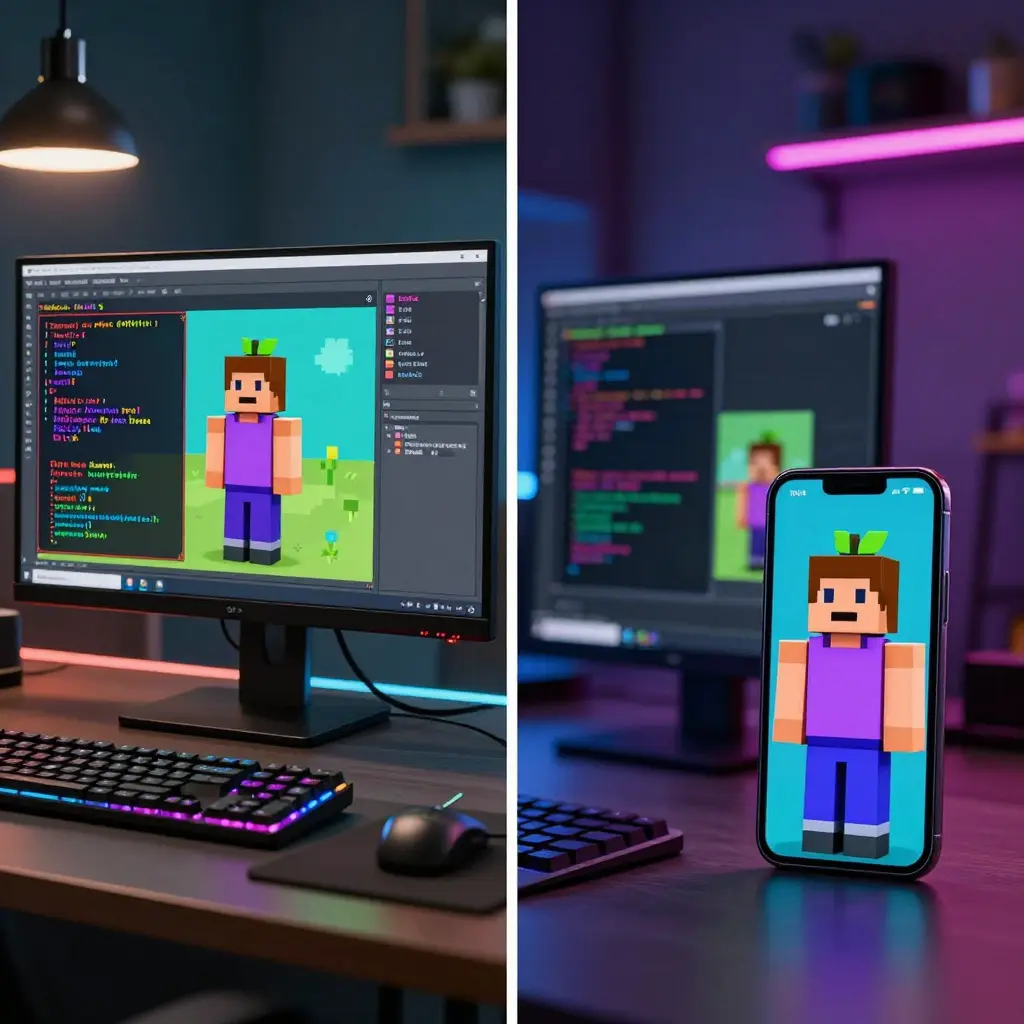
Windows PCs provide the most reliable scripting experience. Extensive executor options, superior performance, and larger screens make PC the preferred platform for serious users. However, mobile devices offer convenience-scripting on-the-go during commutes or downtime.
Android strikes the best balance between ease and functionality for mobile users. Installation requires minimal steps, and Delta Executor delivers robust performance without device modification. iOS users face more complexity but achieve similar results through sideloading methods.
Essential Safety Practices
Script installation carries inherent risks-both to your device and Roblox account. Implementing safety measures minimizes these dangers significantly. Always download executors from official sources. Fake executor websites distribute malware designed to steal passwords or infect devices. Bookmark legitimate executor sites to avoid phishing attempts.
Test scripts on alternate accounts before using them on your main profile. Create a throwaway Roblox account specifically for testing new scripts and executors. This protects your primary account’s progress, items, and friends list. If detection occurs, you lose only the test account.
Avoid using scripts in public servers when possible. Private servers limit your exposure to other players who might report suspicious behavior. Additionally, private servers isolate your activity from Roblox’s broader detection algorithms that monitor public server patterns.
Recognizing Safe vs Unsafe Scripts
Safe scripts come from reputable developers with active GitHub repositories or Discord communities. Check script update dates-regularly maintained scripts receive patches shortly after game updates. Abandoned scripts often contain outdated code that triggers detection systems.
Examine script source code before execution. While this requires some programming knowledge, even beginners can spot red flags. Avoid scripts containing numerous obfuscated sections-intentionally unreadable code often hides malicious functions. Legitimate developers use minimal obfuscation, primarily protecting anti-detection measures rather than hiding harmful code.
Join script-specific Discord servers. These communities provide support, announce updates, and warn about detection waves. Experienced users share which features currently trigger bans, helping you configure scripts more safely. Furthermore, developers often release emergency patches in Discord before updating public repositories.
Troubleshooting Common Installation Issues
“Failed to Inject” Error
This common error occurs when the executor can’t connect to Roblox’s process. Close both Roblox and the executor completely. Relaunch Roblox first, wait for full game load, then open the executor and retry injection. If the problem persists, restart your computer or mobile device.
Antivirus interference frequently causes injection failures. Verify your executor folder appears in antivirus exclusions. Some security software ignores user-set exclusions initially, requiring you to add the exclusion twice or disable real-time protection temporarily during injection.
Outdated executors fail to inject after Roblox updates. Developers release executor updates within 24-48 hours of major Roblox patches. Check your executor’s official website or Discord server for the latest version. Download and install updates whenever they become available.
Executor Crashes Immediately
Corrupted downloads cause immediate crashes. Delete the executor folder completely and redownload from the official source. Verify your internet connection remained stable during the entire download-partial downloads produce corrupted files that crash when launched.
Missing Windows dependencies crash executors on PC. Install both Microsoft Visual C++ Redistributable packages (2015-2019 and 2019-2022 versions) from Microsoft’s website. Additionally, ensure your .NET Framework is updated to version 4.7.2 or higher. These components provide libraries executors require for operation.
Incompatible Android versions crash Delta on mobile devices. Delta requires Android 5.0 (Lollipop) minimum, though Android 8.0+ delivers optimal stability. Check your Android version in Settings > About Phone. If you’re running an older version, consider updating your device or using an alternative executor.
Scripts Won’t Execute
Script syntax errors prevent execution. Ensure you copied the complete script-select all text before copying to avoid missing characters. Paste into a text editor first to verify completeness, then copy again from the editor to your executor. This double-check eliminates most syntax errors.
Executor compatibility issues block certain scripts. Some scripts require specific executors due to their use of proprietary functions. Check script descriptions for compatibility lists. If your executor isn’t listed, try a different script or switch to a compatible executor.
Outdated scripts fail after game updates. Blox Fruits receives frequent patches that break older scripts. Visit the script developer’s GitHub repository or Discord server to find updated versions. Never continue using broken scripts-they often trigger detection systems more readily than working versions.
Key Verification Fails
Ad blockers interfere with key generation systems. Disable browser extensions temporarily during key verification. Privacy-focused browsers like Brave require adjusting their shield settings to allow the key system to function. Additionally, some VPNs block key verification servers-disconnect your VPN temporarily if verification consistently fails.
Expired keys cause verification failures. Free executor keys expire after 24 hours, requiring daily renewal. Check whether your key has expired by comparing the current time to when you last generated a key. Simply repeat the key generation process to obtain a fresh key.
Server issues occasionally prevent key generation. If verification pages won’t load or display errors, wait 30-60 minutes before retrying. Executor developers’ verification servers sometimes experience downtime during peak hours. Check their Discord servers for status updates during extended outages.
Optimizing Performance After Installation
Scripts consume device resources, potentially causing lag during gameplay. Optimize performance by closing unnecessary background applications before launching Roblox. On PC, disable startup programs through Task Manager to free RAM. Mobile users should close all apps through their recent apps menu before beginning.
Lower Roblox’s graphics settings to compensate for script resource usage. Navigate to Roblox’s in-game settings and reduce Graphics Quality to the minimum. Additionally, decrease render distance and disable unnecessary visual effects. These adjustments free processing power for script operations.
Disable script features you’re not actively using. Most comprehensive script hubs enable all features by default. If you only need auto-farm, disable ESP, teleportation, and combat modifications through the script GUI. Each disabled feature reduces resource consumption, improving both game performance and reducing detection risk.
Advanced Configuration Tips
Customize script settings for your specific needs. Many scripts offer adjustable farming speeds, attack distances, and teleportation intervals. Experiment with these settings to find optimal configurations. Slower automation often appears more human-like to detection systems while consuming fewer resources.
Enable executor FPS unlocking if available. This feature removes Roblox’s 60 FPS cap, providing smoother gameplay on capable devices. However, higher frame rates increase battery drain on mobile devices-balance performance against battery life based on your priorities.
Create executor profiles for different games. If you play multiple Roblox games beyond Blox Fruits, save separate script configurations for each. Most executors allow saving multiple script sets, letting you switch between games quickly without reconfiguring everything.
Updating Executors and Scripts
Maintenance represents a critical aspect of sustained script usage. Roblox updates frequently, typically every 2-4 weeks with minor patches and quarterly with major updates. Each update potentially breaks executor injection or script functionality. Staying current with executor and script updates ensures continued operation.
Join executor Discord servers for immediate update notifications. Developers announce new versions through Discord before updating websites. Enable Discord notifications for these servers to receive alerts instantly. Quick updates after Roblox patches minimize downtime.
Bookmark script developer GitHub repositories. Enable “Watch” on repositories for scripts you use regularly. GitHub emails you notifications whenever developers push updates. This automated system ensures you’re always using the latest script versions without manually checking.
Test updated scripts carefully. Even official updates occasionally introduce bugs. After updating any script, test it on an alternate account first. Verify all features work correctly and detection risk hasn’t increased. Only deploy updated scripts to your main account after successful testing.
Successfully installing Blox Fruits scripts opens doors to accelerated progression and enhanced gameplay. Whether you’re running executors on Windows PC, Android phone, or iOS device, this guide provided the complete roadmap from download through execution. Follow these instructions carefully, implement recommended safety practices, and you’ll be auto-farming, teleporting, and dominating Blox Fruits within the hour.
Remember that script usage violates Roblox’s Terms of Service regardless of platform or precautions taken. Always prioritize account safety by testing on alternate profiles. Stay updated with executor and script releases to maintain functionality after game patches. Join community Discord servers for support, troubleshooting assistance, and advanced configuration tips.
The installation process might seem complex initially, but becomes routine after your first successful setup. Bookmark this guide for reference during future installations or when helping friends get started. The scripting community continues growing daily-you’re now equipped to join thousands of players who’ve already enhanced their Blox Fruits experience through automation.